I have a log in
Head straight to your dashboard.
Log in
Learn how to use the new online enrollment feature in your Group's EMI Central portal, effective October 5, 2026.
You can manage employee enrollment directly in your EMI Central account, including enrolling new employees, updating existing member information, and accessing open enrollment.
If the group is set up for Online Enrollment, go to the group’s account, open the Enrollment tab, and select Online.
Within the groups account, go to the Enrollment Tab and click Online.
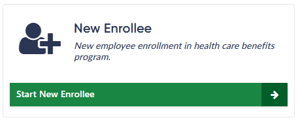
Then click Start New Enrollee to begin enrolling a new employee in a healthcare benefit program. Enter the subscriber’s information, add any dependents, and select a healthcare plan.
Note: You can save your progress by clicking Save & Exit. To continue later, go to Online Enrollment, find the subscriber, and click the pencil icon

When you’re ready to submit the application, use the Review tab to confirm the information provided.
Enter your name and reason for the new enrollee, then click Submit.
Once the enrollment has been submitted, please allow 1–2 business days for the Enrollment Team to process the request.
Note: Processing times may be longer during peak periods.
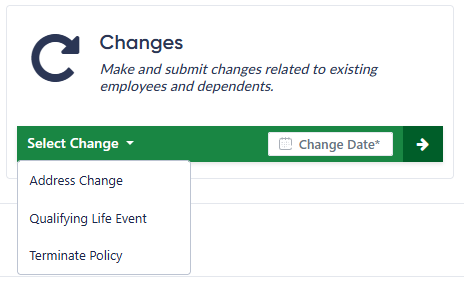
Use Changes to update information for existing employees and dependents. Select the reason for the change: Address Change, Qualifying Life Event, or Terminate Policy.
To begin:
Enter the effective date of the change in the Change Date field.
For terminations, enter the member’s last day of coverage.
Example: If a member terminates employment on 01/23/2026, the termination date should be entered as 01/31/2026.
Note: With any change, you can search for the subscriber by name, Patient, ID or SSN.
Certain types of changes, such as divorce, marriage, plan changes, or the termination of family members are considered Qualifying Life Events (QLEs). If a change qualifies as a QLE, EMI Health may require supporting documentation.
Examples of acceptable documentation include, but are not limited to:
Marriage certificate
Divorce decree
Documentation showing loss or gain of other coverage

Note: Not submitting supporting documentation could result in delay in processing the enrollment.
You can view current subscriber applications and their status under Online Enrollment. Use the search feature to filter applications by name or status.

The application has been submitted and is ready for processing. Depending on the time of submission, you may have time to edit the application before it continues to processing status.

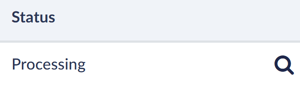
The application is in the system and under review. You can still view the application by clicking the magnifier icon.
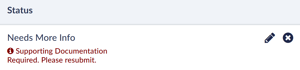
Additional information is needed before processing can continue. The application will show what changes are needed, and you’ll be able to update and resubmit it.
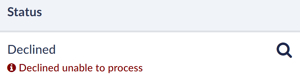
Application was unable to be processed.
Note: Open enrollment is for subscribers who are currently enrolled, or were previously enrolled, in a health plan. If the employee is new to the system, use Start New Enrollee instead.
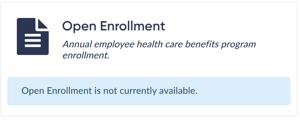
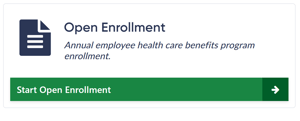
When a group’s open enrollment period is active, the Open Enrollment section will become available.
You must follow these guidelines to continue your paper application:
Paper applications are allowed at anytime but must be in a PDF format.
Excel spreadsheets can only be used for new groups or renewals groups with changes. They must be in our prepopulated format.
Spreadsheets cannot be used as a maintenance enrollment function.
You can upload paper applications directly through the group portal.

Once uploaded, the application will appear in the Paper Application section.
